Thursday, October 18, 2018

How to download files from Google Drive to Google Colaboratory

How to download files from Google Drive to Google Colaboratory


Colaboratory is a research tool for machine learning education and research. It’s a Jupyter notebook environment that requires no setup to use. More info here.


 Navigate to https://colab.research.google.com and open a notebook.
Open File > New Python2 Notebook


How to download a file from google drive to Colaboratory 


from google.colab import auth
auth.authenticate_user()

from googleapiclient.discovery import build
drive_service = build('drive', 'v3')


import io
from googleapiclient.http import MediaIoBaseDownload

file_id = '1uIafI8_GgJSB-XgVa9_lHhJ3JunhT6GH'
request = drive_service.files().get_media(fileId=file_id)
downloaded = io.BytesIO()
downloader = MediaIoBaseDownload(downloaded, request)
done = False
while done is False:
  # _ is a placeholder for a progress object that we ignore.
  # (Our file is small, so we skip reporting progress.)
  _, done = downloader.next_chunk()
 
downloaded.seek(0)
print 'Downloaded file contents are:', downloaded.read()
downloaded.


How to download folder 

 this will throw error "HttpError: "

One option is to zip the folder and get file id of the archive.

file_id = '1VcwmEBcIEEFgYJVM1IT9ZmPI-SqSQEWe'
request = drive_service.files().get_media(fileId=file_id)
downloaded = io.BytesIO()
downloader = MediaIoBaseDownload(downloaded, request)
done = False
while done is False:
  # _ is a placeholder for a progress object that we ignore.
  # (Our file is small, so we skip reporting progress.)
  _, done = downloader.next_chunk()

print 'Download complete' 


downloaded

How to install PyCharm on Oracle Linux


 How to install PyCharm on Oracle Linux


Set proxy if you are behind a firewall.


bash-4.1$ export http_proxy=HTTP_PROXY_HOST_PORT_HERE
bash-4.1$ export https_proxy=
HTTPS_PROXY_HOST_PORT_HERE


Download pycharm archive:


bash-4.1$ wget https://download.jetbrains.com/python/pycharm-community-2017.2.4.tar.gz

--2017-11-05 23:02:33--  https://download.jetbrains.com/python/pycharm-community-2017.2.4.tar.gz
Resolving ... ...
Connecting to |...|:80... connected.
ERROR: certificate common name â??www.jetbrains.comâ? doesnâ??t match requested host name â??download.jetbrains.comâ?.
To connect to download.jetbrains.com insecurely, use â??--no-check-certificateâ??.
So tried again with " --no-check-certificate" option.

bash-4.1$ wget https://download.jetbrains.com/python/pycharm-community-2017.2.4.tar.gz --no-check-certificate


--2017-11-05 23:02:47--  https://download.jetbrains.com/python/pycharm-community-2017.2.4.tar.gz
Resolving ... ...
Connecting to |...|:80... connected.
WARNING: certificate common name â??www.jetbrains.comâ? doesnâ??t match requested host name â??download.jetbrains.comâ?.
Proxy request sent, awaiting response... 302 Moved Temporarily
Location: https://download-cf.jetbrains.com/python/pycharm-community-2017.2.4.tar.gz [following]
--2017-11-05 23:02:48--  https://download-cf.jetbrains.com/python/pycharm-community-2017.2.4.tar.gz
Connecting to |...|:80... connected.
OpenSSL: error:14077410:SSL routines:SSL23_GET_SERVER_HELLO:sslv3 alert handshake failure
Unable to establish SSL connection.

" --no-check-certificate" didn't help. So tried with http url, though its not mentioned in the docs and it worked.


Try using HTTP URL

$ wget http://download.jetbrains.com/python/pycharm-community-2017.2.4.tar.gz

--2017-11-05 23:03:10--  http://download.jetbrains.com/python/pycharm-community-2017.2.4.tar.gz
Connecting to |:80... connected.
Proxy request sent, awaiting response... 302 Moved Temporarily
Location: http://download-cf.jetbrains.com/python/pycharm-community-2017.2.4.tar.gz [following]
--2017-11-05 23:03:10--  http://download-cf.jetbrains.com/python/pycharm-community-2017.2.4.tar.gz
..
Proxy request sent, awaiting response... 200 OK
Length: 200392450 (191M) [binary/octet-stream]
Saving to: â??pycharm-community-2017.2.4.tar.gzâ?

100%[======================================================================================================================>] 200,392,450 3.16M/s   in 64s

2017-11-05 23:04:14 (2.99 MB/s) - â??pycharm-community-2017.2.4.tar.gzâ? saved [200392450/200392450]

Extract archive:


$ sudo tar xf pycharm-community-2017.2.4.tar.gz -C /opt/
Password:

cd /opt

ln -s  /opt/pycharm-community-2017.2.4 pycharm

Start pycharm:


sh pycharm/bin/pycharm.sh

Tuesday, July 24, 2018

How to Deploy Google Firebase Application


Firebase Setup


This blog explains how to setup a Firebase project and deploy a sample Firebase Hosting application.

Create a Firebase project


Follow the steps mentioned in https://firebase.google.com/docs/web/setup

Create a Firebase project in the Firebase console.

Go to Firebase Console.


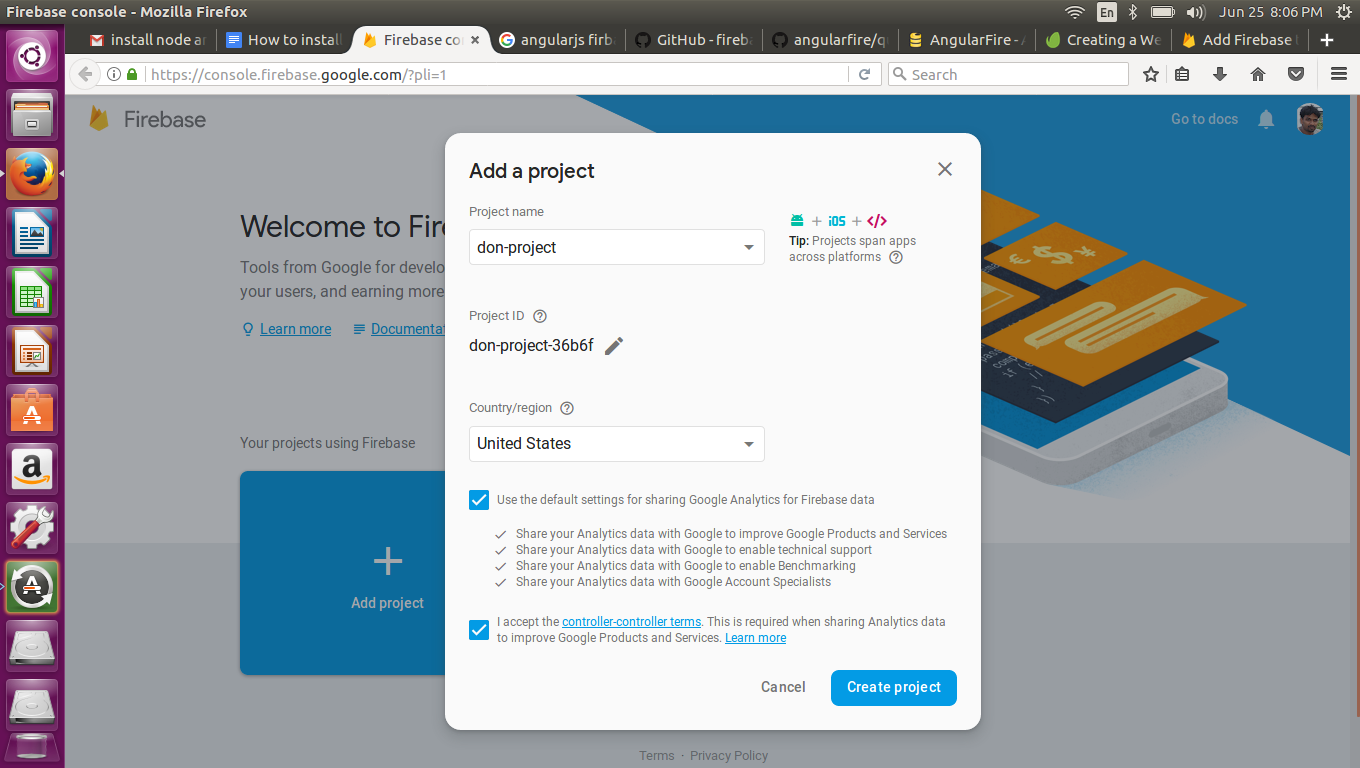
Click Add project and provide details
Enter project name
Firebase will generate a unique project id by adding a suffix.
Select Country


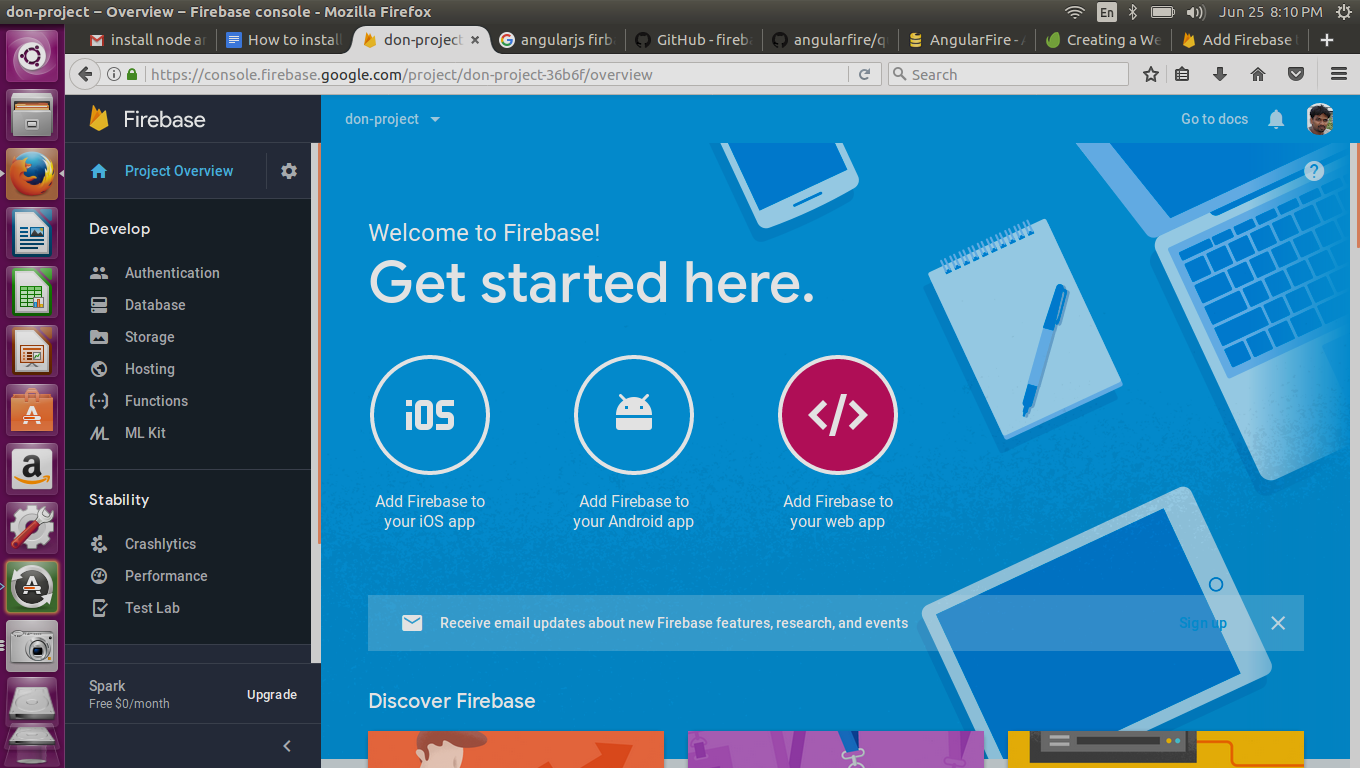
Once project creation is successful, click Continue. This will take you to project console.


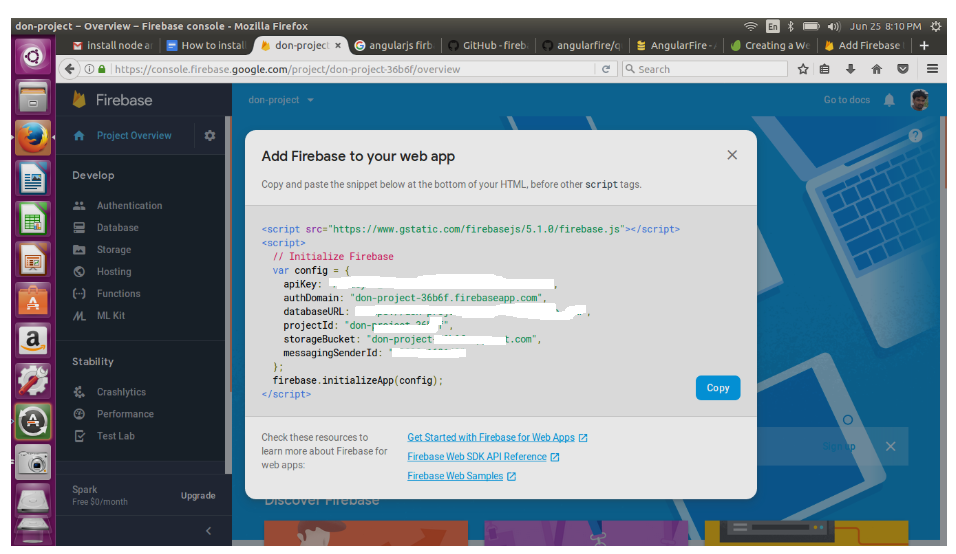
Click “Add Firebase to your Web App” link to copy initialization code snippet.

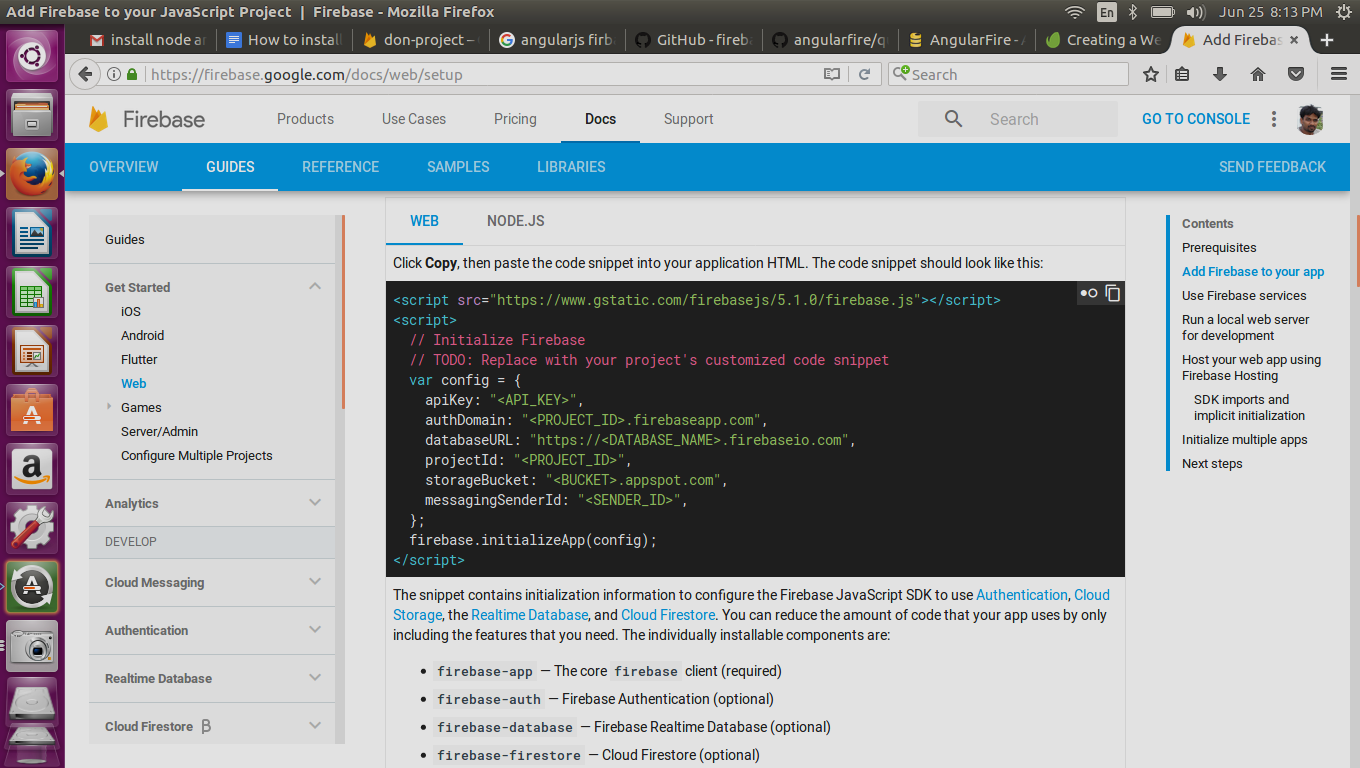
The snippet contains initialization information to configure the Firebase JavaScript SDK to use Authentication, Cloud Storage, the Realtime Database, and Cloud Firestore.

Sample snippet from documentation.


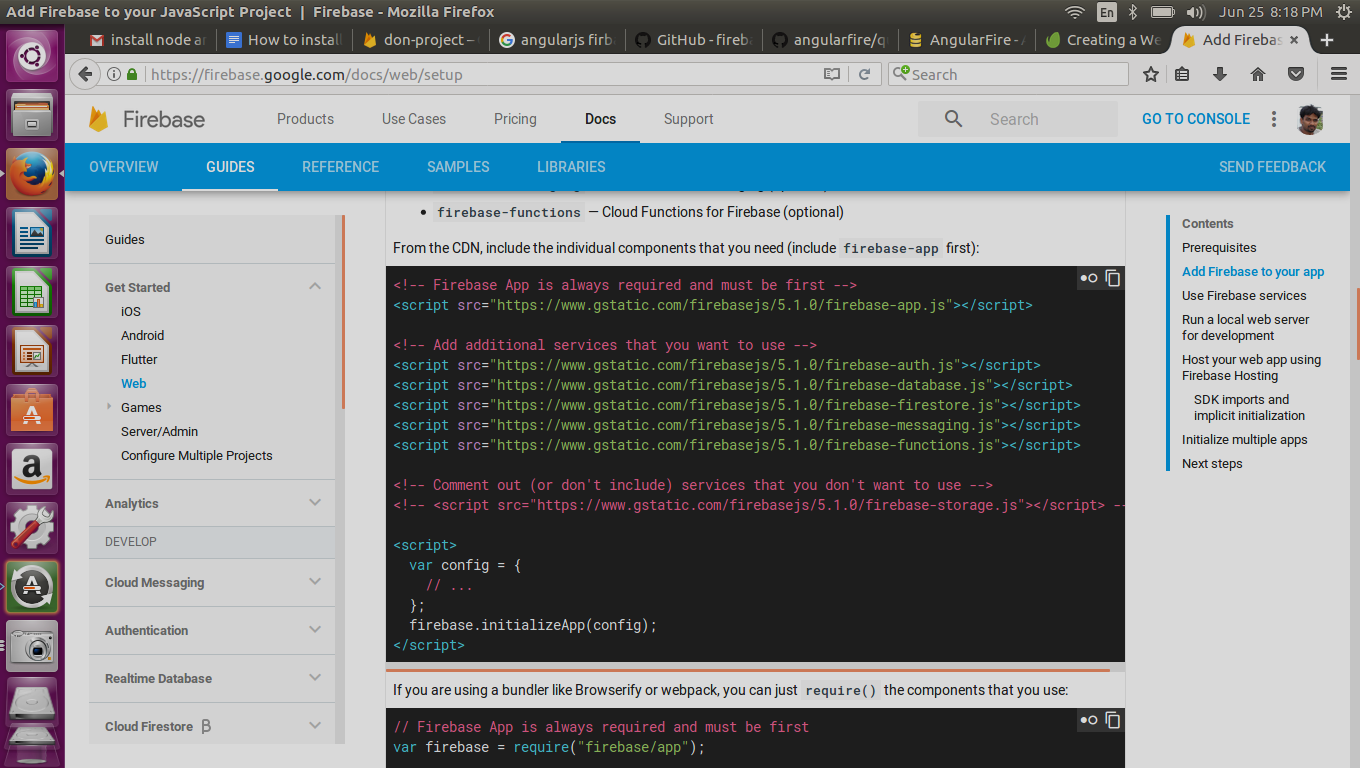
Include the above snippet and the firebase libraries(.js files) to index.html of your project.


Install Firebase CLI


Install Node.js


This is a prerequisite to install firebase CLI. I have installed the latest version (10.5.0) using package manager. Refer https://nodejs.org/en/download/package-manager/#debian-and-ubuntu-based-linux-distributions

$ curl -sL https://deb.nodesource.com/setup_10.x | sudo -E bash -

Above command will download the shell  script available at https://deb.nodesource.com/setup_10.x And execute it as root user. The script will run “sudo apt-get update” and show commands to install Node.js

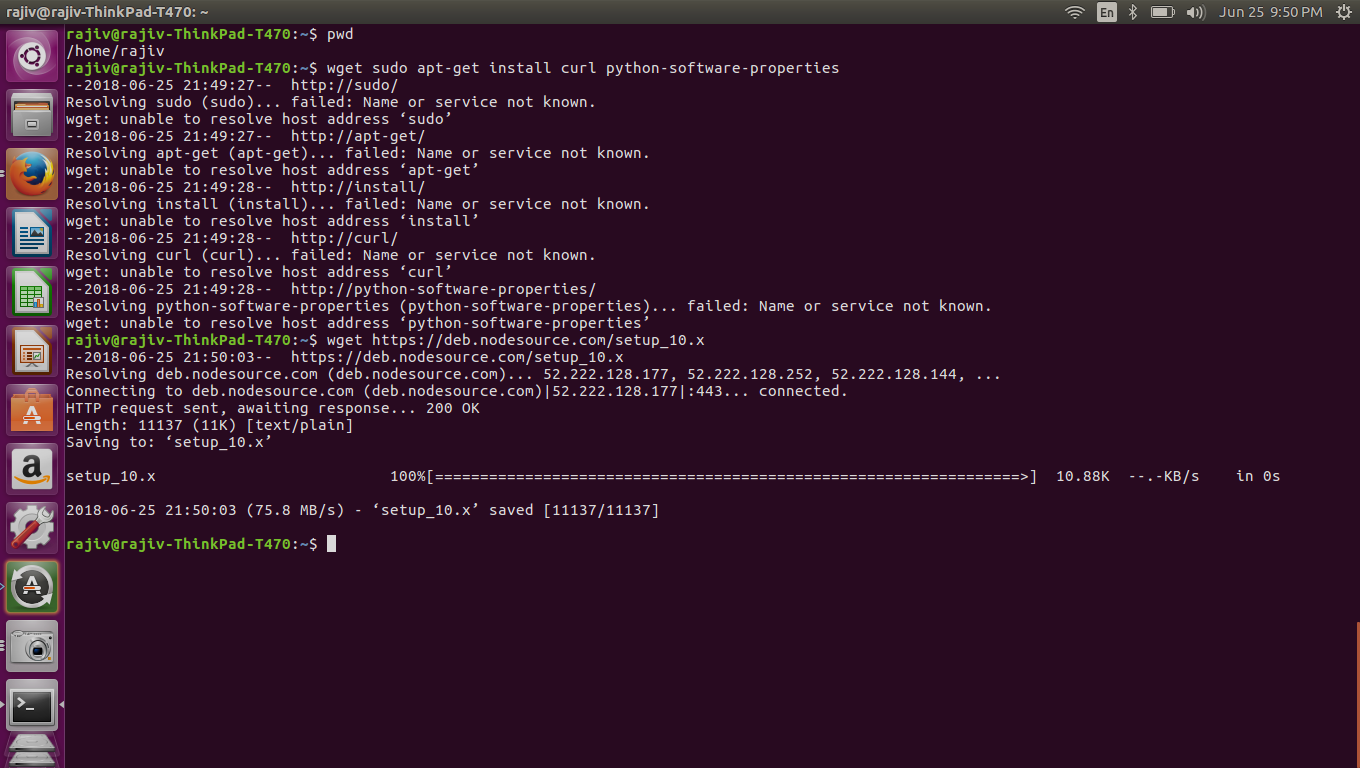
I got below error as curl is not available.


Install curl

$ sudo apt install curl


Also tried below command but got same error.

sudo apt-get install curl python-software-properties

Download the script using wget


Install script

$ sudo bash setup_10.x

sudo bash setup_10.x

## Installing the NodeSource Node.js 10.x repo...


## Populating apt-get cache...

+ apt-get update
Get:1 http://security.ubuntu.com/ubuntu xenial-security InRelease [107 kB]
Hit:2 http://in.archive.ubuntu.com/ubuntu xenial InRelease
Get:3 http://in.archive.ubuntu.com/ubuntu xenial-updates InRelease [109 kB]   
Get:4 http://security.ubuntu.com/ubuntu xenial-security/main amd64 Packages [511 kB]
Get:5 http://in.archive.ubuntu.com/ubuntu xenial-backports InRelease [107 kB]
Get:6 http://in.archive.ubuntu.com/ubuntu xenial-updates/main amd64 Packages [796 kB]
Get:7 http://security.ubuntu.com/ubuntu xenial-security/main i386 Packages [452 kB]
Get:8 http://in.archive.ubuntu.com/ubuntu xenial-updates/main i386 Packages [727 kB]
Get:9 http://security.ubuntu.com/ubuntu xenial-security/main Translation-en [219 kB]    
Get:10 http://security.ubuntu.com/ubuntu xenial-security/main amd64 DEP-11 Metadata [67.7 kB]  
Get:11 http://security.ubuntu.com/ubuntu xenial-security/main DEP-11 64x64 Icons [72.5 kB]          
Get:12 http://security.ubuntu.com/ubuntu xenial-security/restricted amd64 Packages [7,204 B]  
Get:13 http://security.ubuntu.com/ubuntu xenial-security/restricted i386 Packages [7,224 B]  
Get:14 http://security.ubuntu.com/ubuntu xenial-security/restricted Translation-en [2,152 B]
Get:15 http://security.ubuntu.com/ubuntu xenial-security/universe amd64 Packages [355 kB]          
Get:16 http://in.archive.ubuntu.com/ubuntu xenial-updates/main Translation-en [329 kB]        
Get:17 http://in.archive.ubuntu.com/ubuntu xenial-updates/main amd64 DEP-11 Metadata [318 kB]   
Get:18 http://security.ubuntu.com/ubuntu xenial-security/universe i386 Packages [303 kB]     
Get:19 http://in.archive.ubuntu.com/ubuntu xenial-updates/main DEP-11 64x64 Icons [231 kB]          
Get:20 http://in.archive.ubuntu.com/ubuntu xenial-updates/restricted amd64 Packages [7,560 B]     
Get:21 http://in.archive.ubuntu.com/ubuntu xenial-updates/restricted i386 Packages [7,520 B]     
Get:22 http://in.archive.ubuntu.com/ubuntu xenial-updates/restricted Translation-en [2,272 B]    
Get:23 http://in.archive.ubuntu.com/ubuntu xenial-updates/universe amd64 Packages [636 kB]
Get:24 http://security.ubuntu.com/ubuntu xenial-security/universe Translation-en [132 kB]     
Get:25 http://in.archive.ubuntu.com/ubuntu xenial-updates/universe i386 Packages [581 kB]             
Get:26 http://security.ubuntu.com/ubuntu xenial-security/universe amd64 DEP-11 Metadata [107 kB]
Get:27 http://security.ubuntu.com/ubuntu xenial-security/universe DEP-11 64x64 Icons [142 kB]  
Get:28 http://security.ubuntu.com/ubuntu xenial-security/multiverse amd64 Packages [3,456 B]  
Get:29 http://security.ubuntu.com/ubuntu xenial-security/multiverse i386 Packages [3,620 B]
Get:30 http://security.ubuntu.com/ubuntu xenial-security/multiverse Translation-en [1,744 B]
Get:31 http://in.archive.ubuntu.com/ubuntu xenial-updates/universe Translation-en [256 kB]
Get:32 http://in.archive.ubuntu.com/ubuntu xenial-updates/universe amd64 DEP-11 Metadata [246 kB]
Get:33 http://in.archive.ubuntu.com/ubuntu xenial-updates/universe DEP-11 64x64 Icons [331 kB]
Get:34 http://in.archive.ubuntu.com/ubuntu xenial-updates/multiverse amd64 Packages [16.4 kB]
Get:35 http://in.archive.ubuntu.com/ubuntu xenial-updates/multiverse i386 Packages [15.5 kB]
Get:36 http://in.archive.ubuntu.com/ubuntu xenial-updates/multiverse Translation-en [8,344 B]
Get:37 http://in.archive.ubuntu.com/ubuntu xenial-updates/multiverse amd64 DEP-11 Metadata [5,964 B]
Get:38 http://in.archive.ubuntu.com/ubuntu xenial-updates/multiverse DEP-11 64x64 Icons [14.3 kB]
Get:39 http://in.archive.ubuntu.com/ubuntu xenial-backports/main amd64 Packages [4,844 B]
Get:40 http://in.archive.ubuntu.com/ubuntu xenial-backports/main i386 Packages [4,836 B]
Get:41 http://in.archive.ubuntu.com/ubuntu xenial-backports/main amd64 DEP-11 Metadata [3,328 B]
Get:42 http://in.archive.ubuntu.com/ubuntu xenial-backports/universe amd64 Packages [7,400 B]
Get:43 http://in.archive.ubuntu.com/ubuntu xenial-backports/universe i386 Packages [7,084 B]
Get:44 http://in.archive.ubuntu.com/ubuntu xenial-backports/universe Translation-en [3,996 B]
Get:45 http://in.archive.ubuntu.com/ubuntu xenial-backports/universe amd64 DEP-11 Metadata [5,100 B]
Get:46 http://in.archive.ubuntu.com/ubuntu xenial-backports/universe DEP-11 64x64 Icons [1,788 B]
Fetched 7,279 kB in 4s (1,537 kB/s)
Reading package lists... Done

## Confirming "xenial" is supported...

+ wget -qO /dev/null -o /dev/null 'https://deb.nodesource.com/node_10.x/dists/xenial/Release'

## Adding the NodeSource signing key to your keyring...

+ wget -qO- https://deb.nodesource.com/gpgkey/nodesource.gpg.key | apt-key add -
OK

## Creating apt sources list file for the NodeSource Node.js 10.x repo...

+ echo 'deb https://deb.nodesource.com/node_10.x xenial main' > /etc/apt/sources.list.d/nodesource.list
+ echo 'deb-src https://deb.nodesource.com/node_10.x xenial main' >> /etc/apt/sources.list.d/nodesource.list

## Running `apt-get update` for you...

+ apt-get update
Hit:1 http://security.ubuntu.com/ubuntu xenial-security InRelease
Hit:2 http://in.archive.ubuntu.com/ubuntu xenial InRelease
Get:3 https://deb.nodesource.com/node_10.x xenial InRelease [4,611 B]
Hit:4 http://in.archive.ubuntu.com/ubuntu xenial-updates InRelease              
Get:5 https://deb.nodesource.com/node_10.x xenial/main amd64 Packages [765 B]
Hit:6 http://in.archive.ubuntu.com/ubuntu xenial-backports InRelease       
Fetched 5,376 B in 0s (6,709 B/s)
Reading package lists... Done

## Run `sudo apt-get install -y nodejs` to install Node.js 10.x and npm
## You may also need development tools to build native addons:
sudo apt-get install gcc g++ make
## To install the Yarn package manager, run:
curl -sL https://dl.yarnpkg.com/debian/pubkey.gpg | sudo apt-key add -
echo "deb https://dl.yarnpkg.com/debian/ stable main" | sudo tee /etc/apt/sources.list.d/yarn.list
sudo apt-get update && sudo apt-get install yarn


Run `sudo apt-get install -y nodejs` to install Node.js 10.x and npm

Install nodejs


$sudo apt-get install -y nodejs


Install dev tools to build native addons


$ sudo apt-get install gcc g++ make


Install yarn package manager


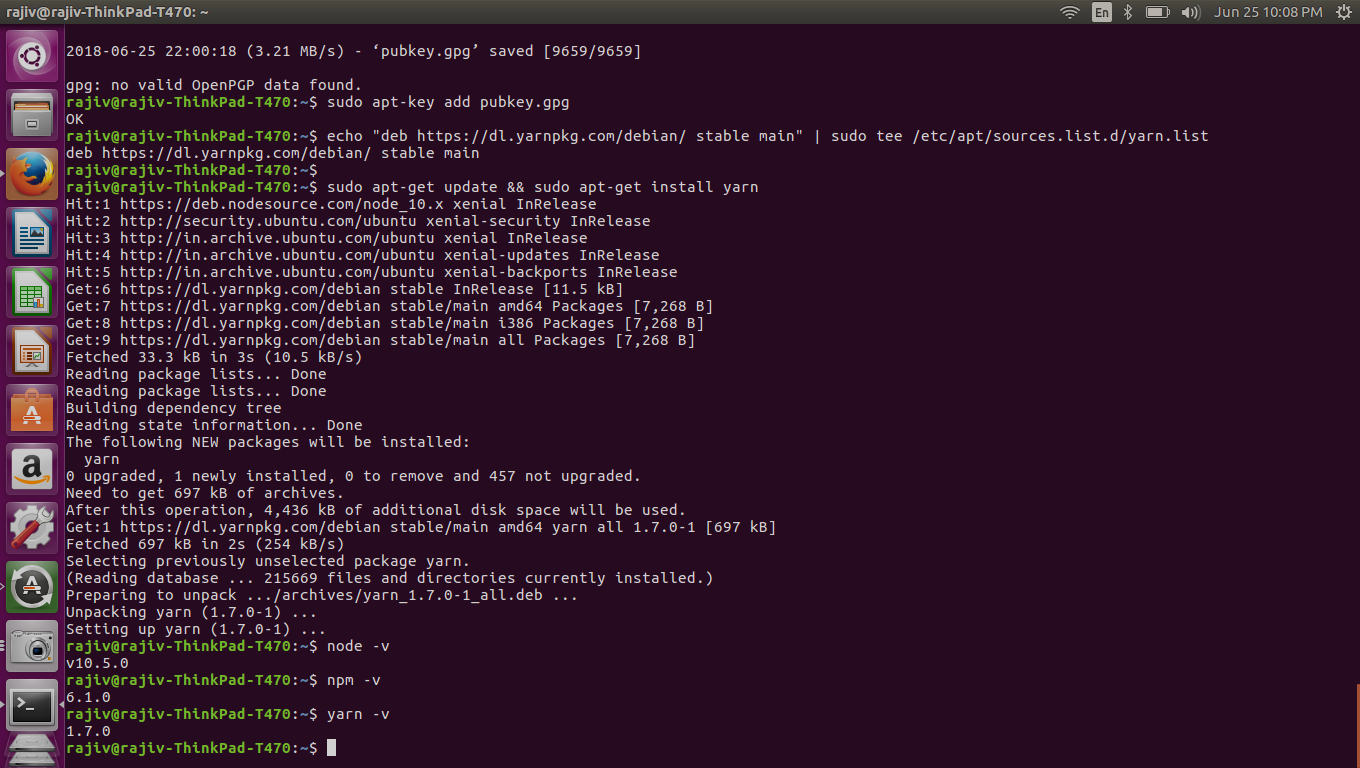
To install the Yarn package manager, run:


$ wget https://dl.yarnpkg.com/debian/pubkey.gpg | sudo apt-key add -


$ sudo apt-key add pubkey.gpg


$ echo "deb https://dl.yarnpkg.com/debian/ stable main" | sudo tee /etc/apt/sources.list.d/yarn.list

$ sudo apt-get update && sudo apt-get install yarn


Verify installation


Verify installation is successful for:
  • Node
  • npm package manager
  • yarn package manager


Run hello world using Node


$ node
> console.log('Hello World')

Sample output:


Install Firebase CLI


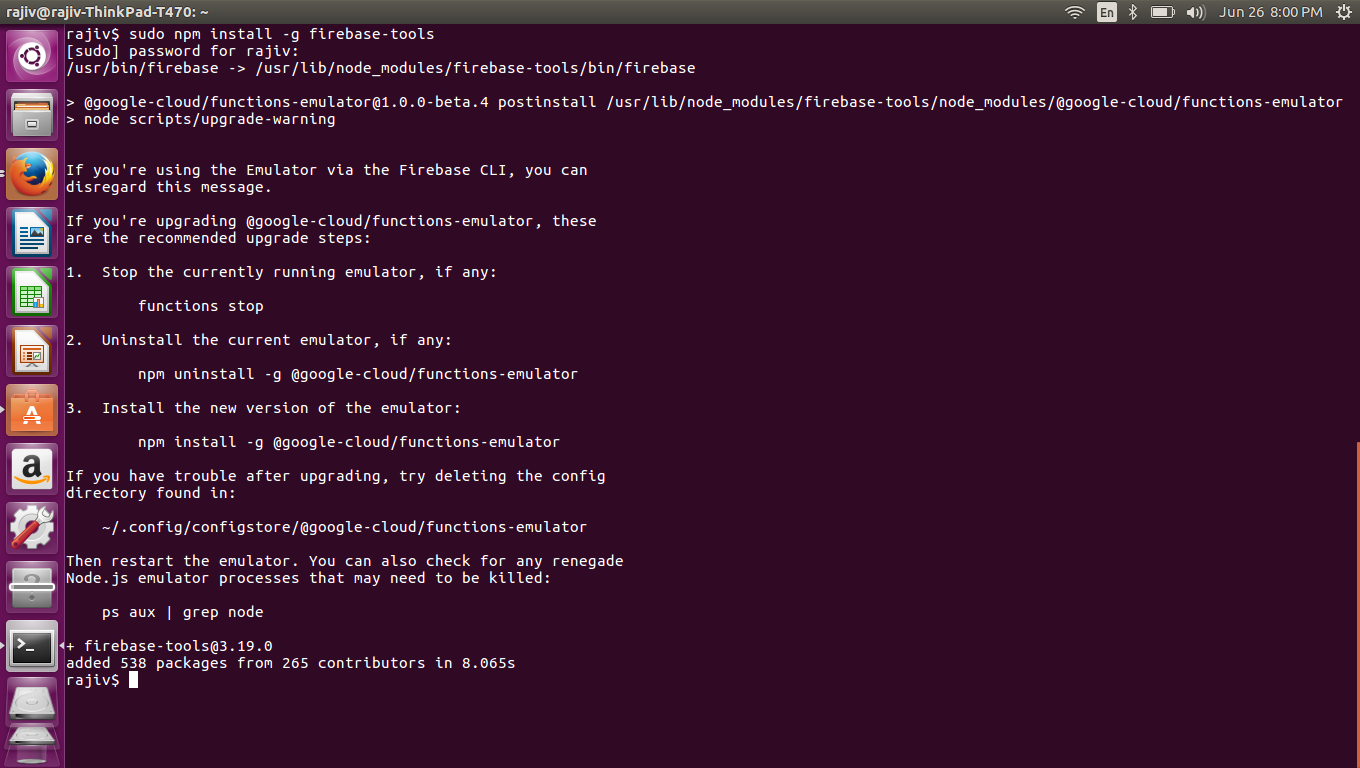
Install firebase cli using npm

$ sudo npm install -g firebase-tools


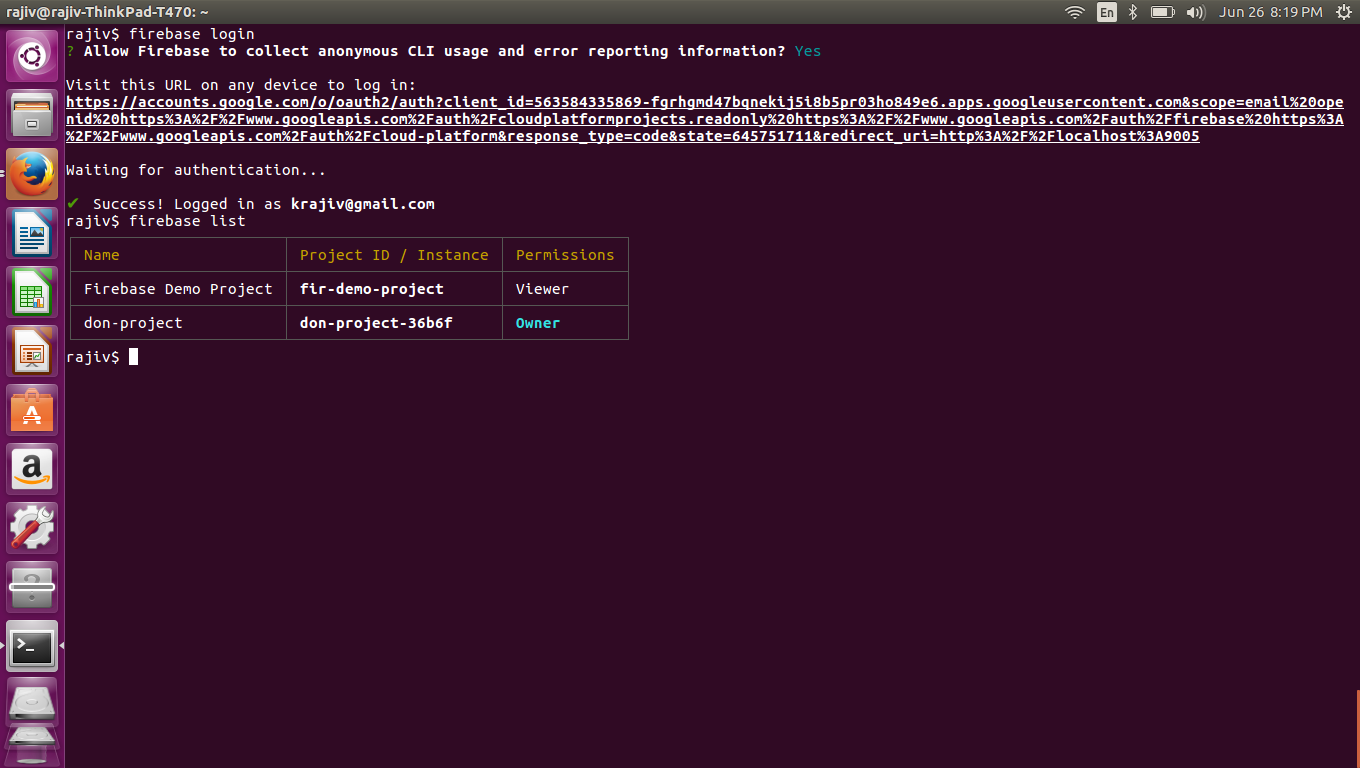
Login to google account from firease cli


$ firebase login


This will open up a new tab in browser and ask to login to google account. Login to your google account and allow firebase cli to access necessary information. Now it will show login successful message.


Run firebase list to view the project created from firebase console

$ firebase list


Download starter project

Create new project


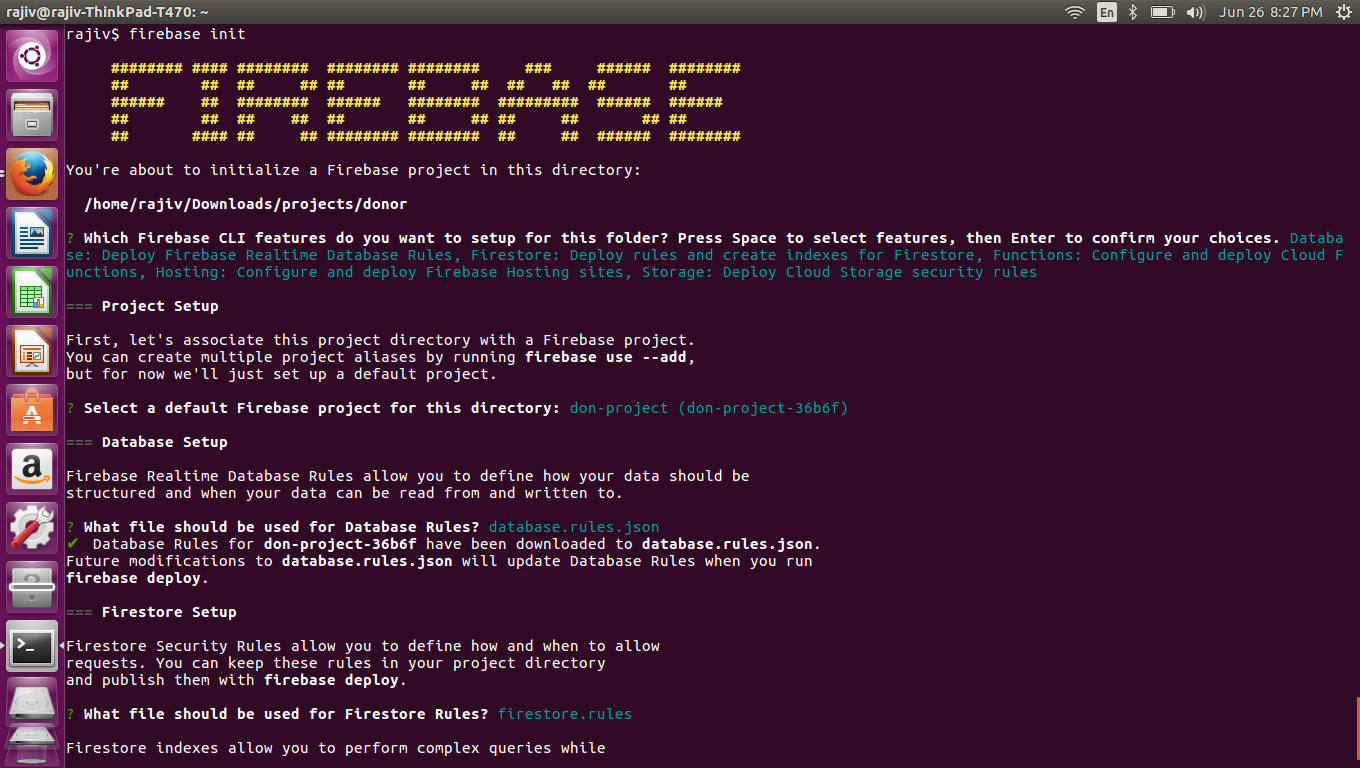
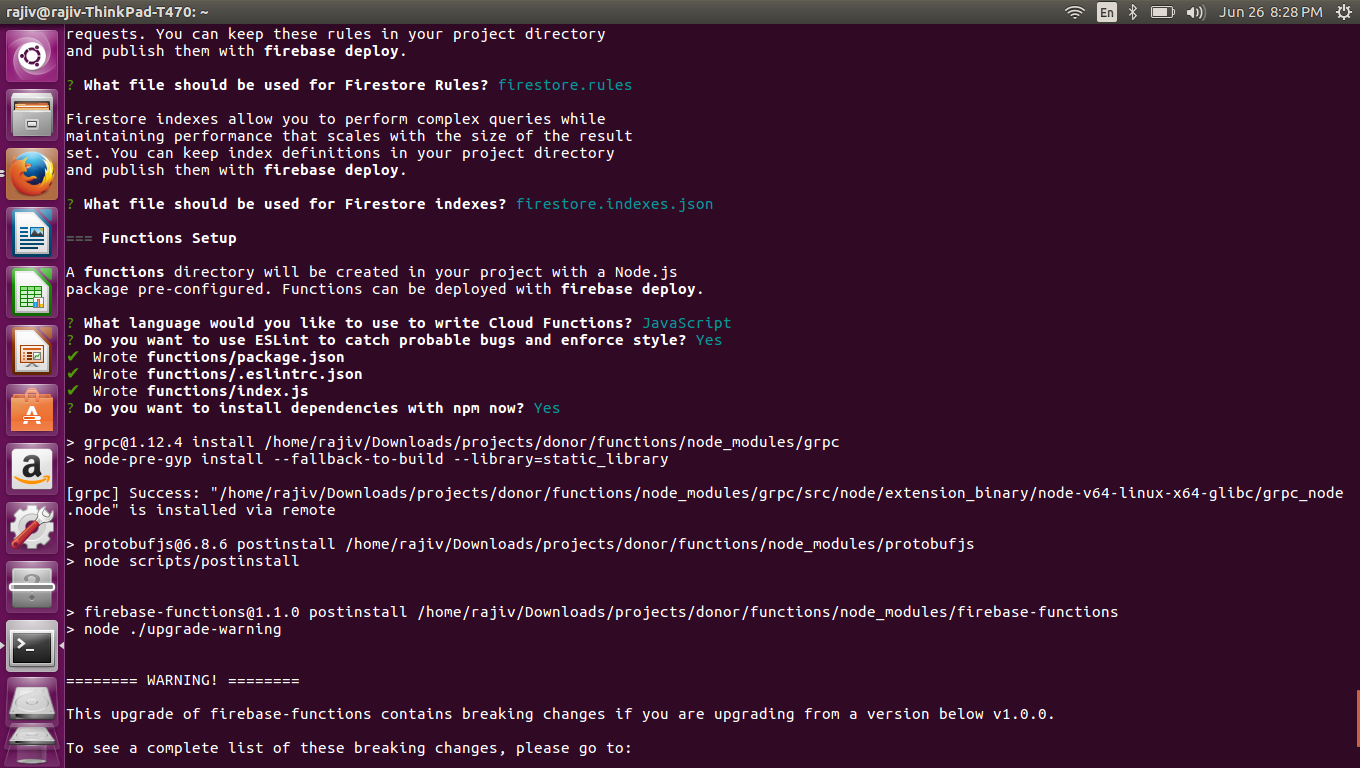
Firebase init


I have selected all modules. So after running ‘firebase init’ below files/folders were created in the current dir.
This will create below files in the current dir.

database.rules.json
firebase.json
firestore.indexes.json
firestore.rules
functions
package-lock.json
public
storage.rules

Deploy new project


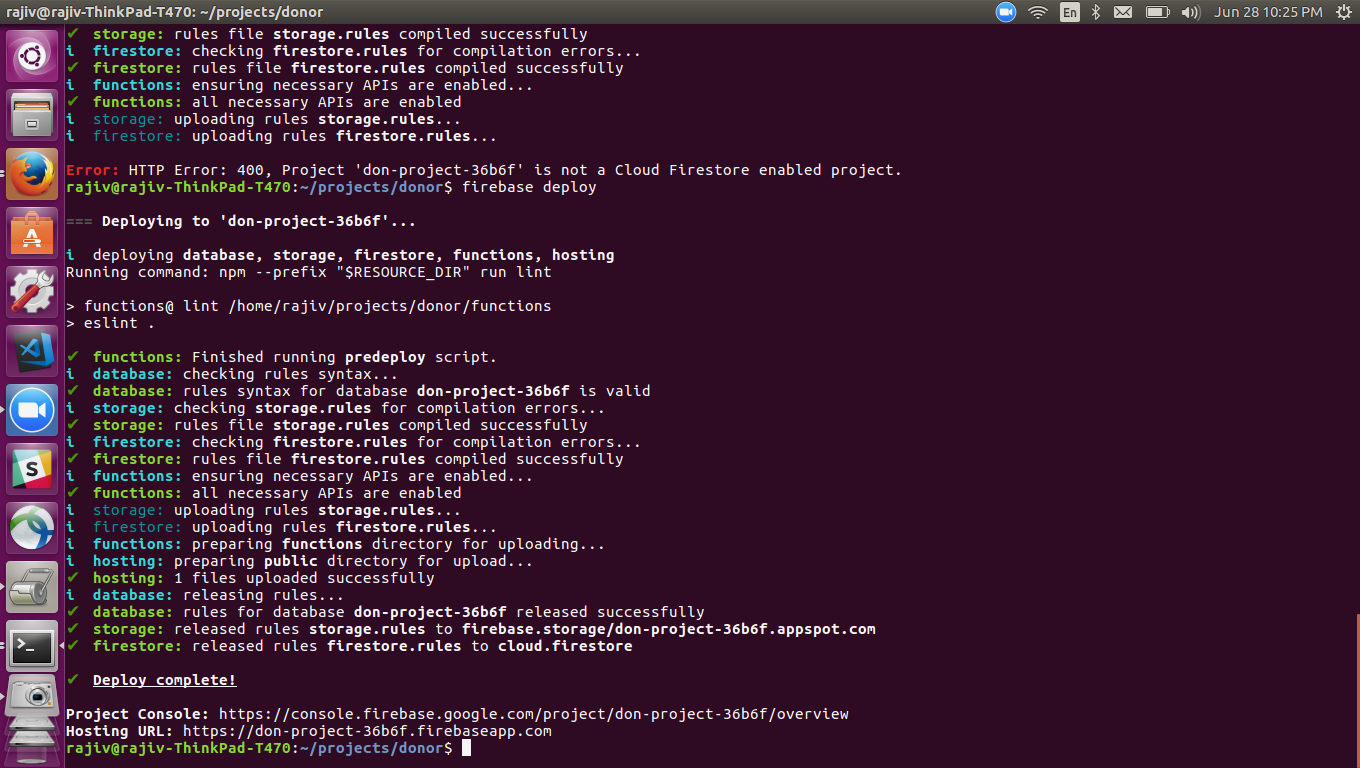
‘firebase deploy’

But deploy failed with below error:

Error: HTTP Error: 400, Project 'don-project-36b6f' is not a Cloud Firestore enabled project.


Enable Cloud Firestore from Firebase Console


Go to Firebase Console
Select Database from left side navigation
Click Get started.
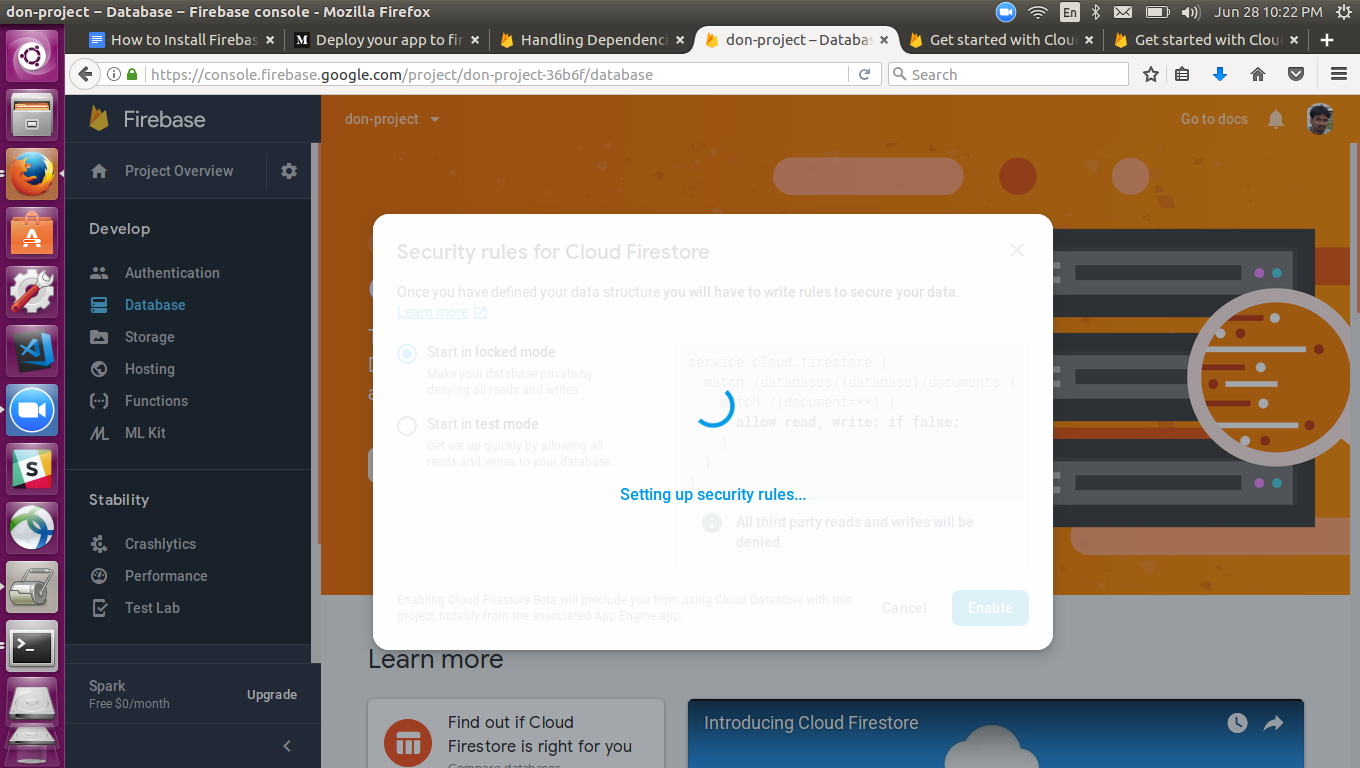
The popup will show two options

Select “Start in locked mode’

Click “Enable”


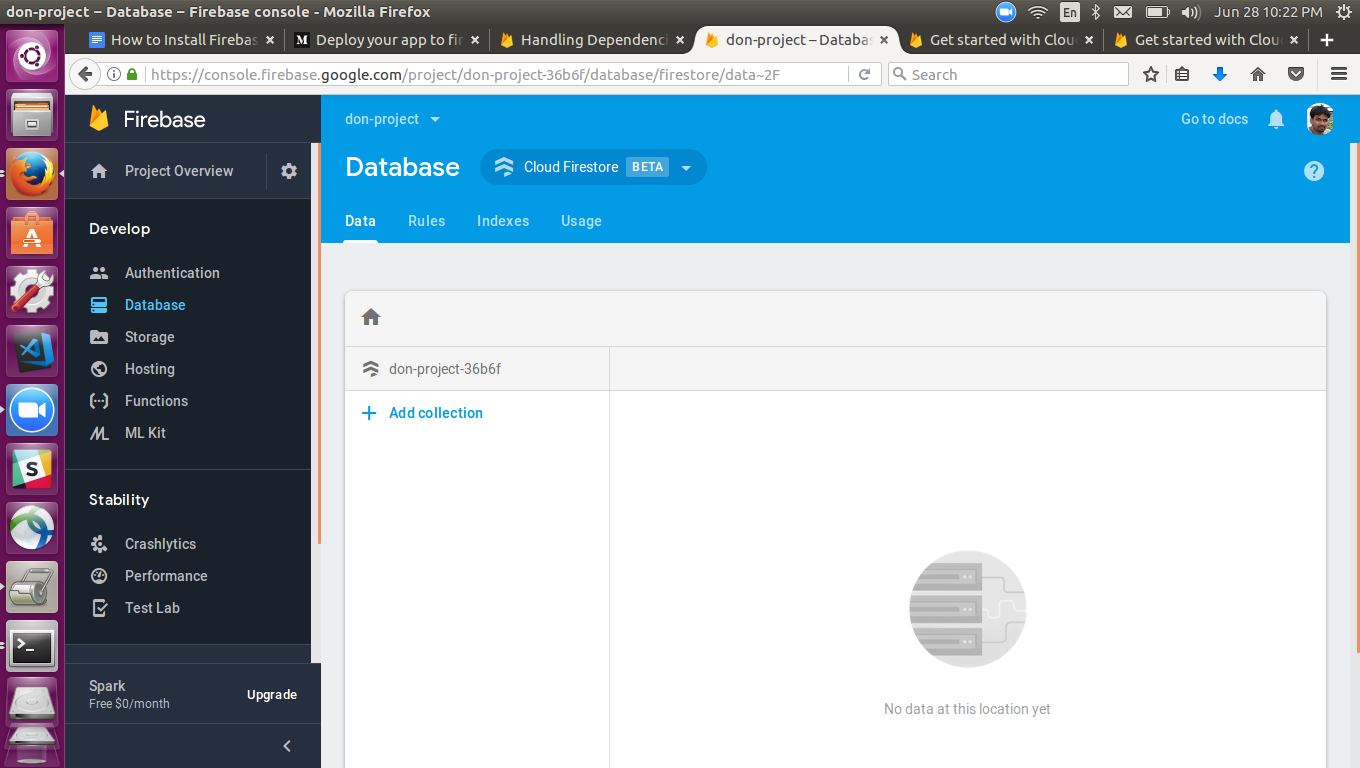
Try firebase deploy again


Once the operation completed, try ‘firebase deploy’ again

firebase deploy


Click hosting url


As shown above, the sample app got deployed successfully.